How to Connect Your Wallet to Uniswap
RateMyWallets is reader-supported. When you buy through links on this page, we may earn a commission at no extra cost to you.
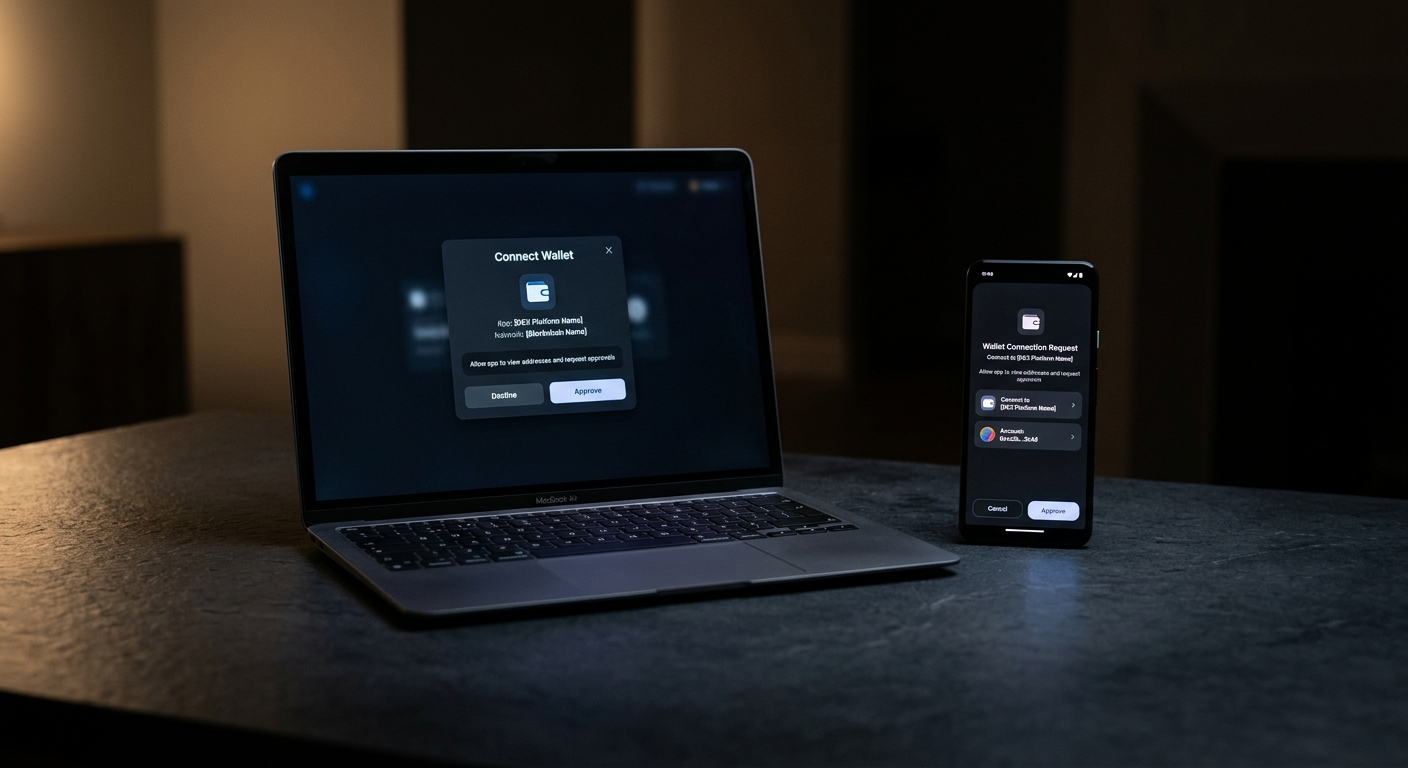
By the end of this tutorial, you will know exactly how to swap tokens directly from your wallet without needing a centralized exchange. Uniswap is the first DeFi (short for decentralized finance, which refers to financial applications that operate on a blockchain without banks or middlemen) stop for most people. The connection process is straightforward and keeps you in full control of your assets every step of the way.
What You Need Before You Start
Before you begin, have these three things ready:
- A self-custody wallet installed: Popular options include the MetaMask browser extension, Trust Wallet, Phantom, Coinbase Wallet, or the Uniswap Wallet app. If you have not set one up yet, start with one of those guides first.
- Crypto in your wallet: You need at least some Ethereum (ETH) or the native gas token of whichever network you plan to use, to cover transaction fees.
- The official URL bookmarked: Navigate directly to app.uniswap.org and save it as a bookmark. Phishing sites that mimic Uniswap are common, so going through your bookmark every time is a simple habit that protects you.
How to Connect on Desktop
Follow these five steps to get connected securely.
- Open your web browser and go to app.uniswap.org.
- Click the Connect button in the top-right corner of the screen.
- Select your wallet from the list. The most common options are MetaMask, Coinbase Wallet, and WalletConnect (a protocol that lets your mobile wallet communicate with a desktop site via a scannable QR code). If your wallet is not listed directly, choose WalletConnect.
- Approve the popup that appears in your wallet extension. This grants Uniswap permission to view your address and balance only. It does NOT give the app permission to spend your funds.
- Check the top-right corner of the Uniswap interface. Your wallet address appears there once you are successfully connected.
How to Connect on Mobile
Three paths work depending on which wallet you use:
- Uniswap Wallet app (iOS, Android, Chrome): This app has a wallet built in, so there is no external connection step. Open the app and you are ready to swap.
- In-app DApp browser: Many mobile wallets, including Trust Wallet, have an integrated browser. Open app.uniswap.org from inside your wallet to connect automatically.
- WalletConnect QR code: Open app.uniswap.org on your desktop and choose WalletConnect. Then use your mobile wallet to scan the QR code displayed on screen.
What Happens When You Swap (The Approval Step)
Connecting your wallet is not the same as approving a transaction, and the distinction matters.
When you connect, you grant Uniswap read-only access to see your address and balance. Nothing can move from your wallet without an additional step.
When you want to swap a token for the first time, you will be asked to complete a token approval: a specific authorization that gives the Uniswap smart contract permission to move that token on your behalf. The standard flow is two separate transactions: first you approve the token, then you execute the swap.
As of 2025, the Uniswap Wallet app uses smart wallet technology that bundles the approval and the swap into a single click. Whichever path you use, token approvals persist after the swap is done. It is good practice to revoke unused approvals after any DeFi session.
Troubleshooting
- Wallet not appearing: Make sure your browser extension is installed and unlocked. Refresh the page and try connecting again.
- Wrong network: Uniswap defaults to Ethereum mainnet. Use the network selector in your wallet to switch to Base, Arbitrum, or Polygon if you want lower transaction costs.
- High fees on Ethereum: Base and Arbitrum run the same Uniswap interface at a fraction of the cost. Our guide on gas fees explains how network fees work and when switching networks makes sense.
- Connection failed: Disconnect from within Uniswap's settings menu, then reconnect. If the issue continues, try an incognito window to rule out conflicts with other browser extensions.
What to Do After Connecting
Once your wallet is linked, you can swap tokens directly without going through a centralized exchange. After each DeFi session, take a moment to revoke unused approvals to keep your exposure minimal.
To find a wallet built for DeFi, compare wallet features or read full wallet reviews at RateMyWallets.